ARTICLE
在Mac上原生玩一把Nginx

全栈老韩
全栈工程师,擅长iOS App开发、前端(vue、react、nuxt、小程序&Taro)开发、Flutter、React Native、后端(midwayjs、golang、express、koa)开发、docker容器、seo优化等。
流程
1. 本地创建文件夹
terminal
mkdir -p backEnd
cd backEnd
2. 下载nginx
terminal
wget http://nginx.org/download/nginx-1.17.10.tar.gz如果没有wget工具,那么下载wget:
- centOS上使用:
terminal
yum install -y wget- MacOS上使用:
terminal
brew install wget3. 解压缩
terminal
tar -zxvf nginx-1.17.10.tar.gz4. 查看最近一次命令是否执行成功
terminal
echo $?5. 编译nginx
terminal
cd nginx-1.17.10
./configure && make && make install
# 如果提示需要perl环境,那么执行以下命令
brew install -y pcre pcre-devel
# 如果需要指定将nginx编译到某一个文件夹,可以执行以下命令
mkdir nginx // 这里的nginx指的是当前目录下的文件夹
./configure --prefix=../nginx
6. 查看nginx是否被设置了环境变量
terminal
which nginx7. 查看当前目录下的文件及文件夹的详细描述
terminal
ll8. 查看当前运行的nginx进程
terminal
ps -ef | grep nginx
# 查看mysql进程
ps -ef | grep mysql
9. centOS中设置nginx命令
terminal
// linux系统的环境变量一般都在profile文件中,例如Mac的.bash_profile文件等
// centos中存放在/etc/profile文件中

// 1.进入etc目录,打开profile并编辑
[root@VM-4-14-centos etc]# vi profile

// 2. 在profile文件中的export 语句后面新增一条语句
# 这里的"nginx_pkg/nginx-d/sbin/"需要替换成你自己nginx编译安装之后的nginx可执行文件所在的目录
export PATH=$PATH:/root/nginx_pkg/nginx-d/sbin/
// 3. 编辑profile完成后,点esc后输入:wq保存退出;
// 4. 更新profile使生效
[root@VM-4-14-centos etc]source profile
// 5. 测试nginx是否配置成功
[root@VM-4-14-centos etc]nginx -t
可能遇到的问题
nginx: [alert] could not open error log file: open() "../nginx-d/logs/error.log" failed (2: No such file or directory)
类似下图:

解决方法:
1.检查截图所指路径下是否有error.log文件,若无则在所指的目录(../nginx-d/logs/)下,新建error.log文件
terminal
touch error.log- 修改logs文件夹的权限
terminal
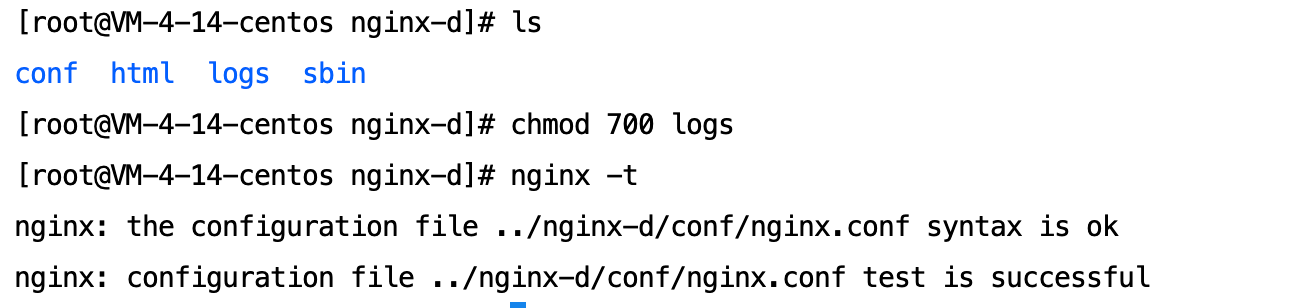
chmod 700 logs- 测试是否解决,下图显示已经成功。
发布于2024-01-23 07:36:10
浏览量107·
写下你的想法
分享观点,友善交流暂无评论,快来发表第一条评论吧